Want to create a beautiful wedding slideshow on your Mac? Whether you’re celebrating a wedding, birthday party, memorial service, or any special life event, a photo slideshow adds an emotional, engaging touch that guests will remember. Here’s everything you need to know to create the perfect event slideshow in 2025.
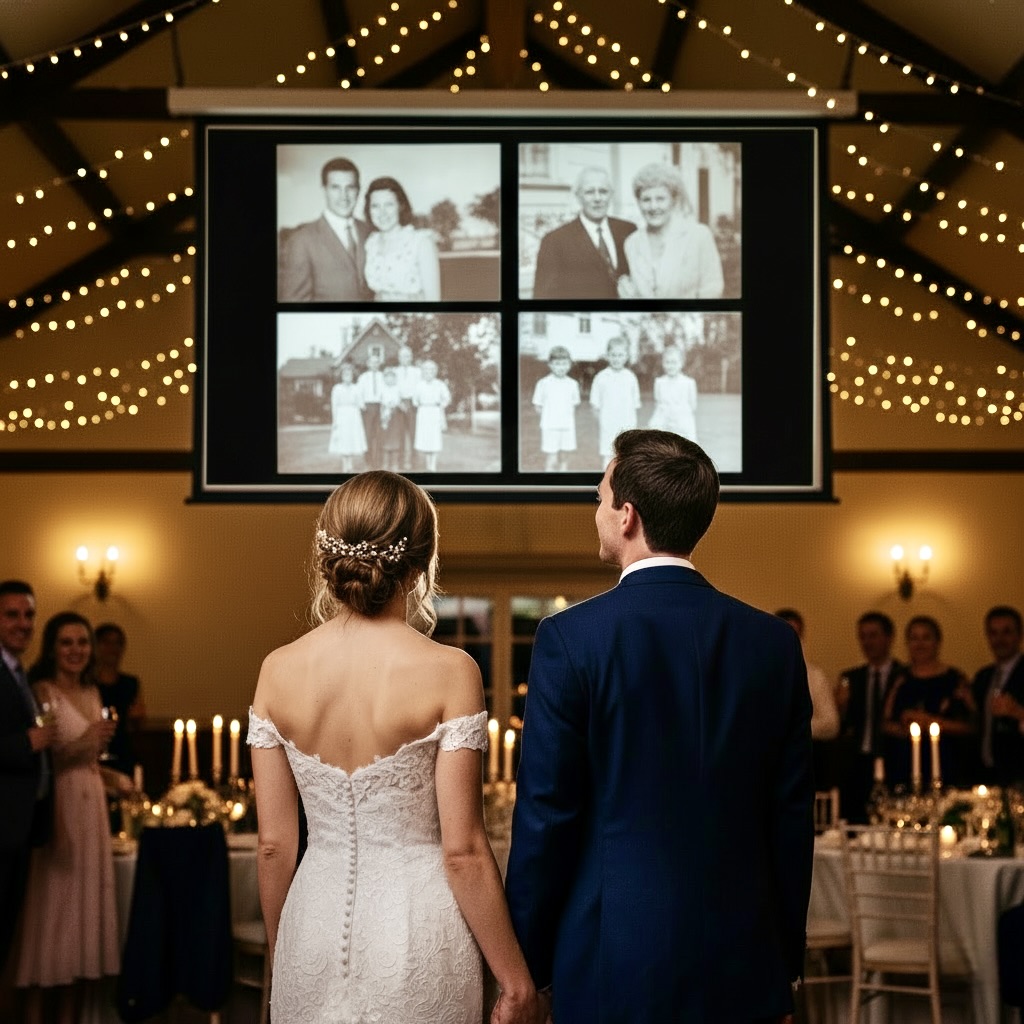
Why Create a Slideshow for Your Event?
Photo slideshows transform special moments into unforgettable experiences:
- Set the emotional tone for weddings, memorials, or celebrations
- Keep guests engaged during receptions, parties, or gatherings
- Share memories with family and friends in a beautiful way
- Create a lasting keepsake you can replay for years to come
- Easy to set up - no video editing skills required
Step-by-Step Guide to Creating Event Slideshows
Step 1: Gather Your Photos
Start by collecting photos from different sources:
- Your Mac’s Photos library
- iCloud or Google Photos
- Photos from family and friends (via AirDrop or email)
- Scanned old photographs for memorial or milestone birthday slideshows
Pro tip: Organize photos in a dedicated folder on your Mac. For weddings, you might create chronological sections (childhood, dating years, engagement). For memorials, gather photos spanning the person’s lifetime.
Step 2: Add Photos to Slideshower
- Download and open Slideshower on your Mac
- Click “Select files or folders”
- Choose your event photo folder
- Your photos will load instantly - ready to display
How many photos? For a 2-hour wedding reception, 360-480 photos work well with 15-20 second intervals. Birthday parties can use 180-240 photos with faster 5-10 second timing, while memorial slideshows often include 240-360+ photos spanning a lifetime with 20-30 second timing.
Step 3: Choose Your Display Settings
Customize how your photos appear:
Display Mode:
- Single photo view for maximum impact (best for weddings and memorials)
- Grid layouts (2x2, 3x3) for birthday parties with lots of fun moments
Transitions:
- Fade transitions: Classic, elegant - perfect for weddings and memorials
- Ken Burns effect: Gentle zoom and pan for a professional, cinematic feel
- Instant changes: Upbeat vibe for birthday celebrations
Timing:
- Wedding receptions: 15-20 seconds per photo
- Birthday parties: 5-10 seconds (faster pace)
- Memorial services: 20-30 seconds (allow time for reflection)
Step 4: Add Background Music
Music transforms your slideshow from good to unforgettable.
- Click “Audio options” in Slideshower’s Settings
- Click “Add Audio Tracks”
- Select your music files (MP3, WAV, AAC, or AIFF)
- Arrange multiple tracks if needed
- Adjust volume to complement, not overpower
Music suggestions:
- Weddings: Couple’s favorite songs, first dance song, romantic classics
- Birthdays: Upbeat celebration songs, birthday person’s favorites
- Memorials: Meaningful hymns, favorite songs, peaceful instrumental music
Step 5: Test Your Slideshow
Before the big day:
- Preview the full slideshow at least once
- Check photo order and timing
- Verify music volume levels
- Test on the actual display/monitor you’ll use
- Have a backup plan (save as video if possible)
Step 6: Display or Export
For live events:
- Connect your Mac to a TV or projector
- Hit “Start” in Slideshower
- Let it run continuously with loop enabled
For sharing:
- Use Slideshower’s video export feature
- Save as MP4 to share via email, social media, or USB drive
- Perfect for sending to guests after the event
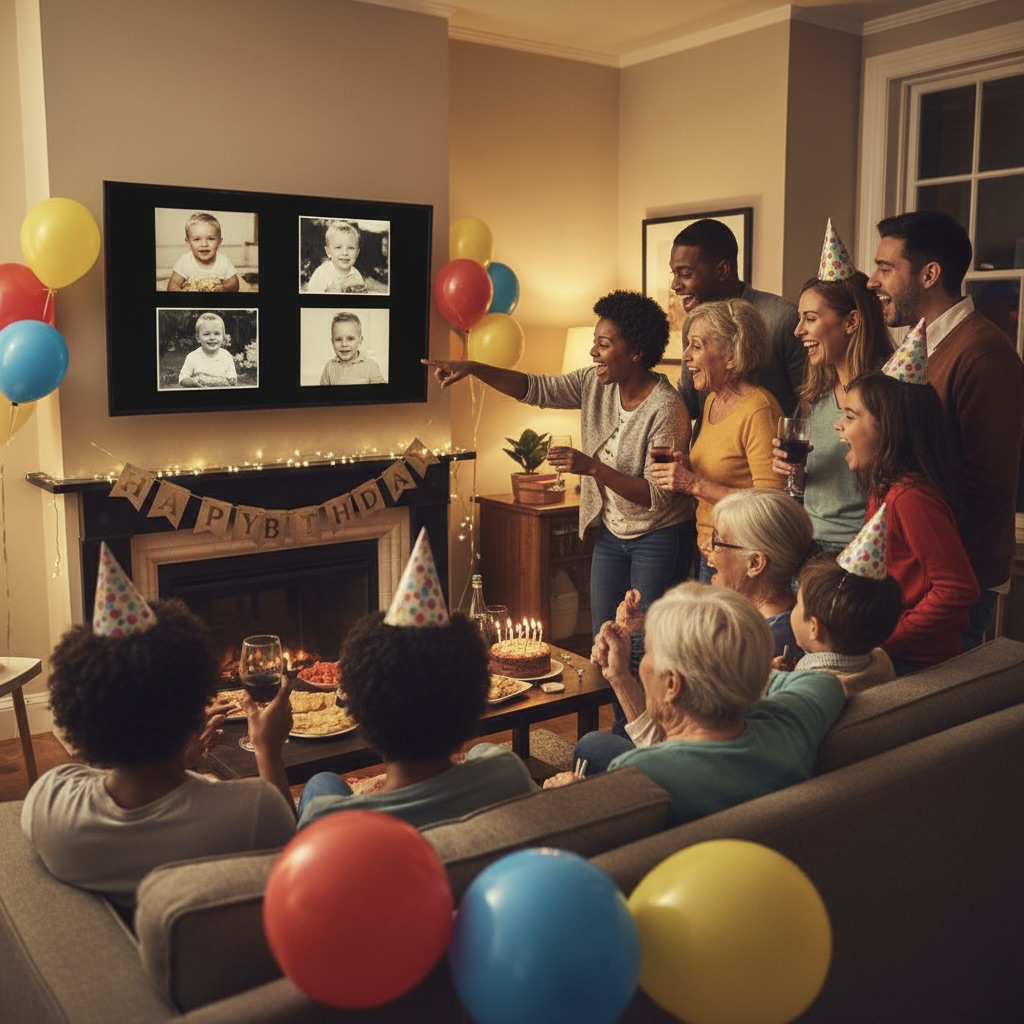
Tips for Different Events
Weddings
Mix childhood photos (both bride and groom), dating photos, and engagement shots. End with recent couple photos. Consider adding text overlays with dates or quotes using preview tools before importing to Slideshower.
Birthday Parties
Create a chronological journey from baby photos to present day. Include funny moments, milestones, and photos with friends and family. Faster pace keeps energy high.
Memorial Services
Honor a lifetime with photos spanning all ages. Include family gatherings, hobbies, achievements, and candid moments. Slower timing allows guests to reflect and remember.
Anniversary Celebrations
Focus on the couple’s journey together - wedding day, family growth, travel adventures, and recent moments. Add their wedding song for emotional impact.
Why Slideshower vs. Other Options?
Unlike complex video editing software (iMovie, Final Cut), Slideshower keeps things simple:
- No timeline editing required - just add photos and go
- Easy setup - configure timing, music, and effects before you start
- Professional results with zero learning curve
- Multiple monitor support for large venue displays
- Live Mode for events where photos are added in real-time (perfect for photo booths!)
The Mac Photos app offers basic slideshows, but lacks the control, customization, and professional features needed for important life events.
Getting Started Today
Ready to create a beautiful slideshow for your next celebration? Download Slideshower and start building memories that will last forever.
Whether you’re planning a wedding reception, celebrating a milestone birthday, or honoring a loved one’s memory, the right slideshow makes all the difference. With just a few simple steps, you’ll create something truly special that guests will talk about long after the event ends.
Have questions about creating your event slideshow? Reach out at hello@slideshower.com – I’m here to help make your celebration perfect.
Happy slideshowing! 💐🎂🕊️
Best, Pawel