Slideshower has a built-in display selector that lets you send your slideshow directly to a Smart TV — but it needs one macOS setting to work properly. Screen mirroring (the obvious first instinct) makes your mouse and desktop visible on the TV too, which isn’t great in front of guests. The fix is AirPlay as an extended display instead of mirroring. This guide walks you through both steps in about two minutes.
Why Not Just Use Screen Mirroring?
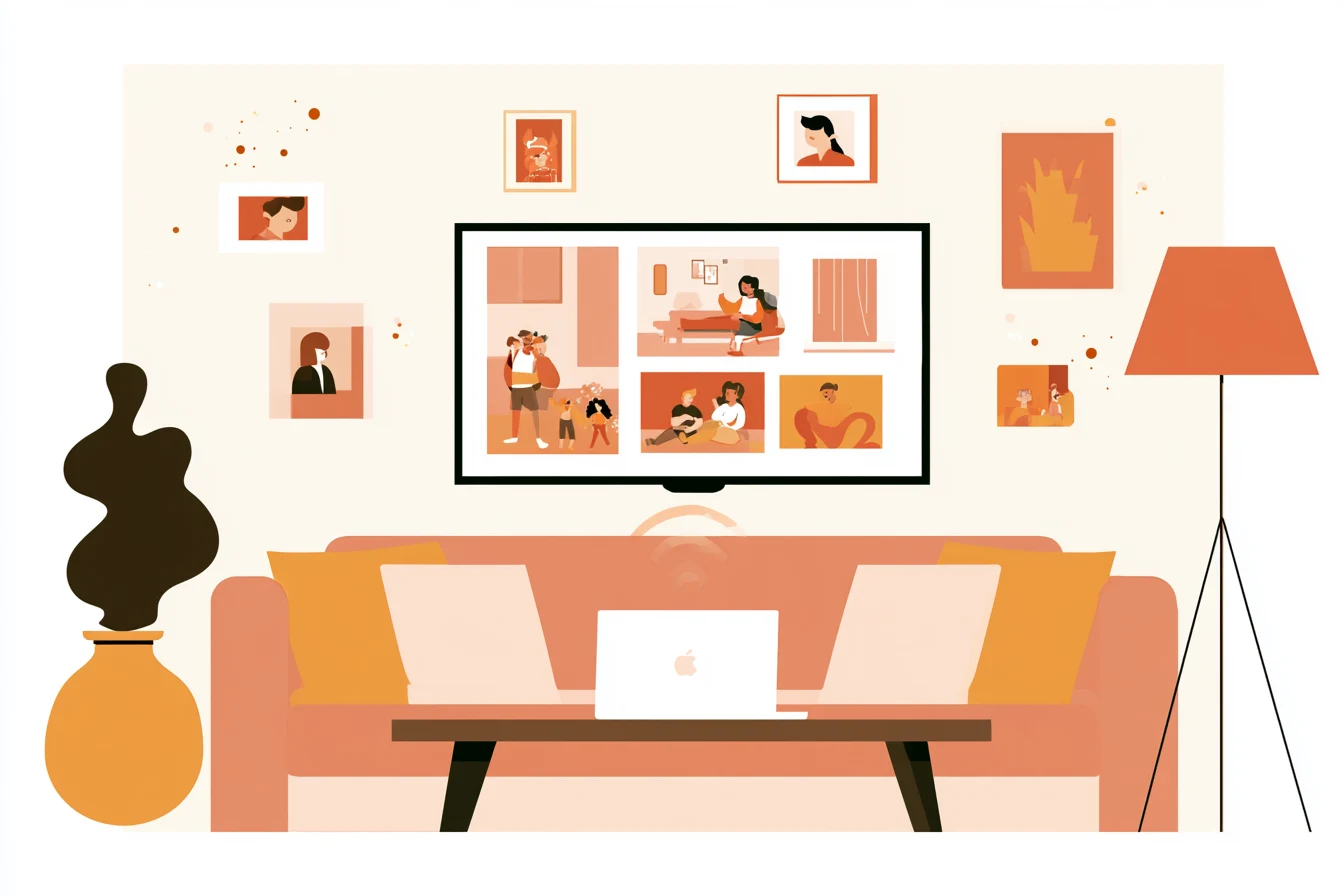
Screen mirroring copies your entire Mac screen to the TV — mouse cursor, notifications, everything. Not great when guests are watching. The fix is connecting your TV as an extended display instead: macOS treats it as a separate screen, so only Slideshower is visible on the TV while you stay in full control on your Mac.
Step-by-Step: How to Set It Up
Step 1: Connect Your TV via AirPlay in System Settings
- Open System Settings on your Mac and go to Displays
- Click the + button in the bottom-right corner of the window
- Select your Smart TV from the list of available AirPlay displays
- Once connected, confirm it’s set as an extended display — make sure “Mirror Displays” is not checked
Your TV should now show a blank extended desktop rather than a copy of your Mac screen.
Step 2: Point Slideshower at Your TV
- Open Slideshower and click the Advanced Options button
- Go to the Display tab
- In the “Slideshow Display” dropdown, select your TV
Step 3: Start Your Slideshow
Hit Start. The slideshow plays full-screen on your TV. Your Mac shows the Slideshower controls — pause, skip, adjust timing, change settings — none of it visible on the TV.
Clean, uninterrupted photos on the big screen. Full control on your Mac.
Works with HDMI, USB-C, and Projectors Too
AirPlay is the wireless option, but the same approach works with anything you plug in:
- HDMI — cable from your Mac (or a USB-C adapter) to your TV or monitor
- USB-C / Thunderbolt — same idea, different cable
- Projectors — ideal for events and presentations
- Conference room screens — great for business use
As long as macOS treats it as an extended display (not mirrored), Slideshower will find it in the dropdown.
A Few Tips for the Best Experience
Prevent sleep: Go to System Settings → Battery → Options and set your display sleep to “Never” while your slideshow is running so the TV doesn’t go dark mid-party.
Enable shuffle: With the slideshow playing on the TV in the background, shuffle mode keeps photos feeling fresh. Enable it with one checkbox in Slideshower’s main settings.
Add background music: Slideshower can play audio alongside your photos. Add tracks in the Audio Options section — sound goes through whatever output your Mac is using, including HDMI audio via your TV.
Live Mode for events: If you’re collecting photos at a wedding or party, Slideshower’s Live Mode can watch a folder in real time and display new photos automatically as they arrive — all on the TV, hands-free.
Try It Tonight
Using AirPlay as an extended display is the cleanest way to run a Mac slideshow on your TV. No mouse cursors, no desktop clutter — just your photos, full-screen, on the big screen.
If you haven’t tried Slideshower yet, download it for free — the free version supports up to 150 photos. Unlimited photos with a one-time license for $19.
Questions? Drop me a line at hello@slideshower.com.
Happy slideshowing!
Best, Pawel